
For venues and planners
Default suppliers: your regulars on every new event
Venues and planners work with the same suppliers again and again. Add them once in Admin, and every new event you make has them on its Suppliers page from the start.
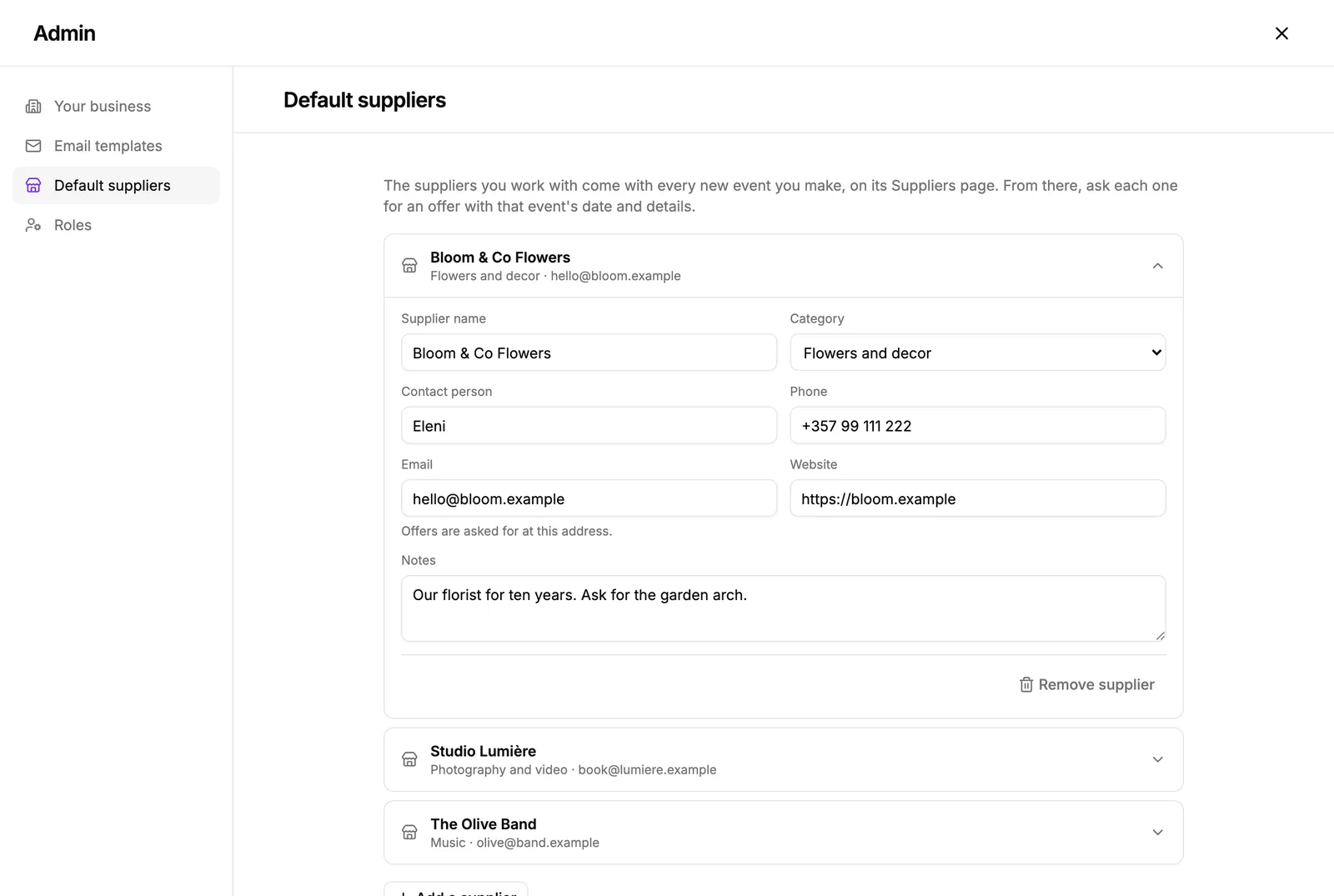
Add your suppliers
- Open Admin, then Default suppliers.
- Press Add a supplier.
- Fill in its name, its category (flowers, photography, music and so on), a contact person, a phone number, an email, a website and any notes.
- Add as many as you work with. Remove one from its own card.
The email matters most: it is where offer requests for your events go.
On every new event
Each event you make from now on, from the calendar, from a spreadsheet you import, or with New event, starts with your default suppliers on its Suppliers page, marked Not contacted yet. Events you made before keep their own suppliers.
Ask for an offer for this event
- Open the event's Suppliers page and open the supplier.
- Press Ask for an offer. The couple's names, the date, the place and the number of guests are filled in from the event.
- Check the message, change anything you like, and press Send.
The request goes from MyEventOS in your business's name. The supplier's answer comes back to you by email and in your notifications, the supplier is marked Email sent, and the event's Activity log keeps both the request and the answer.
Did this not answer it? Write to us
A person reads every message and answers by email. Say which event it is about and, if something went wrong, what you were doing at the time.