
Find your seat: how guests find their table from the invitation
5 min read
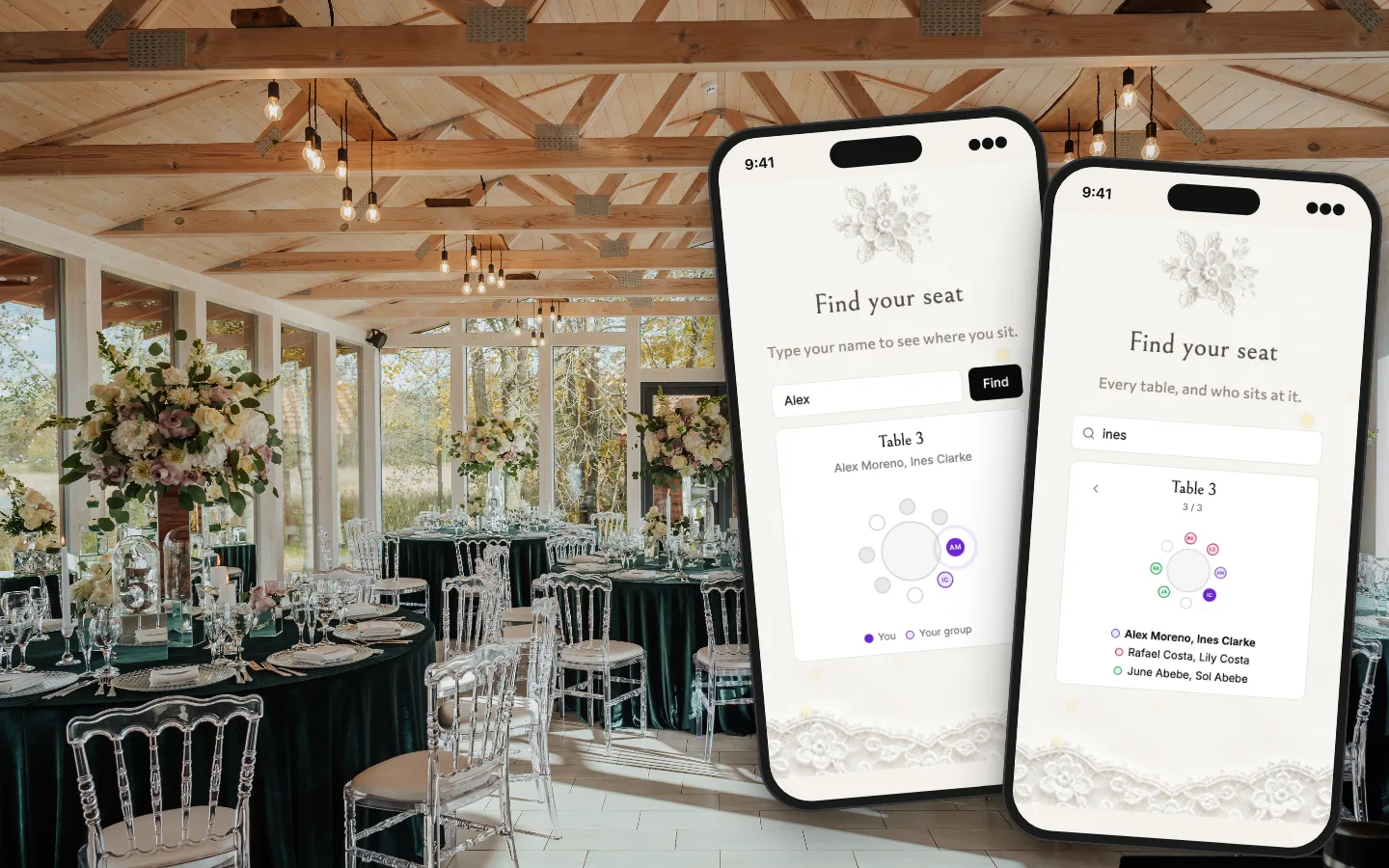
The seating chart by the door is the slowest part of a wedding: forty people reading one board, looking for a name that might be under their surname or their partner's. Find your seat puts the answer on every guest's phone, in the invitation they already have, at the moment you choose. This is how to set it up, and what your guests will see.
What your guests see
On the day, from the time you set, the invitation link opens straight on Find your seat, in your design, without the envelope in the way. A guest types their name and taps Find. They see their table's name, who sits with them, and the table drawn with its chairs: their own chair marked with soft rings going out from it, their party's chairs beside it with their initials.


If you would rather show every table, guests swipe between them, each party in its own colour with its initials on its chairs, the same colours as your seating plan. Searching a name brings round the table it is at and marks that chair. It works in the guest's language, in English, Greek, Hebrew, German and Russian.
Start with the seating plan
Find your seat reads your seating plan, so the plan comes first. Open Guests, then the seating plan, lay out your tables, and seat each party that said yes: drop a party on a table and it takes the next free chairs, or put one person in a particular chair.
- Open Guests, then Open the seating plan.
- Add your tables, round, square or long, and name them if you like: Table 3 reads as Table 3 in every language, Family stays Family.
- Seat each party that is coming.
Two tables are free to lay out; All-in lays as many as you need. Changes show at once: a guest who looks after you move someone sees where they sit now.
Add Find your seat to your invitation
In your invitation, open the form and tap the + at the end of the row of pages. Choose Find your seat. On a drawn design the page is written in the design's own hand, on its ground, so it looks like the rest of your invitation.
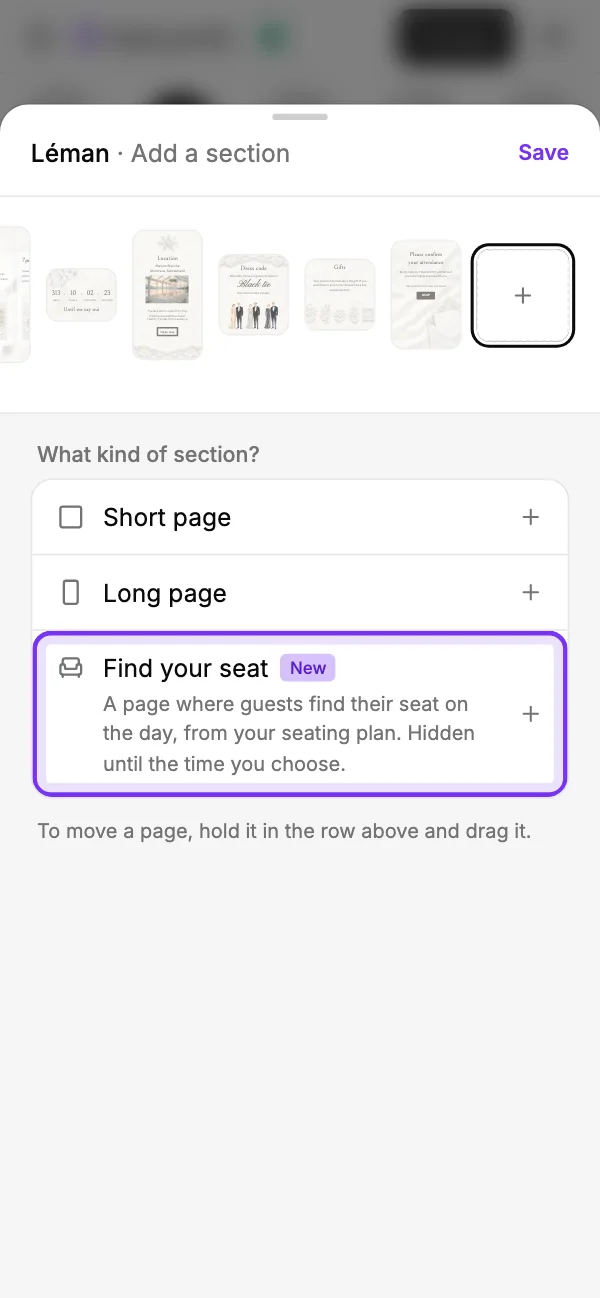
You can also add it from the sections in the editor, beside the other pages. On a drawn design, the pages you add show to guests once the design is unlocked.
Choose when it opens
The page stays closed until the day and time you set, so nobody finds their seat a month early and asks to move. Set it for the moment guests walk into the reception, or a little before.
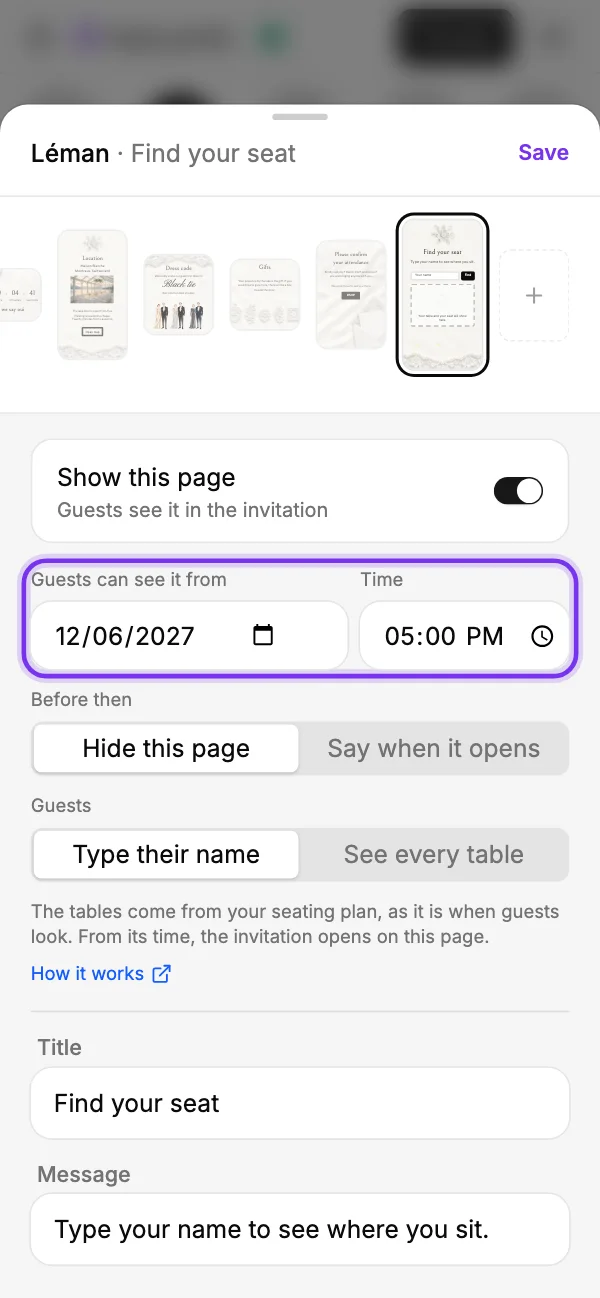
- Before then, Hide this page: guests do not see it at all until it opens.
- Before then, Say when it opens: the page is there, saying "Your table will appear here on" the day and time.
- From its time, the invitation opens on Find your seat.
Until you choose a time, it stays closed. The title and the line under it are yours to change, like any other page.
Type their name, or see every table
Type their name is the private choice: a guest sees only their own table and the people in their own party, never the rest of your list. See every table shows all of it, which suits a smaller wedding, or a family that likes to see who is where.
Either way, the page shows your seating plan as it is when guests look, so a late change at the venue is right on every phone at once.
A QR code at the entrance
For guests who will not open the invitation on the day, print a QR code for the entrance or for each table. In the seating plan, tap Find your seat and download the code.
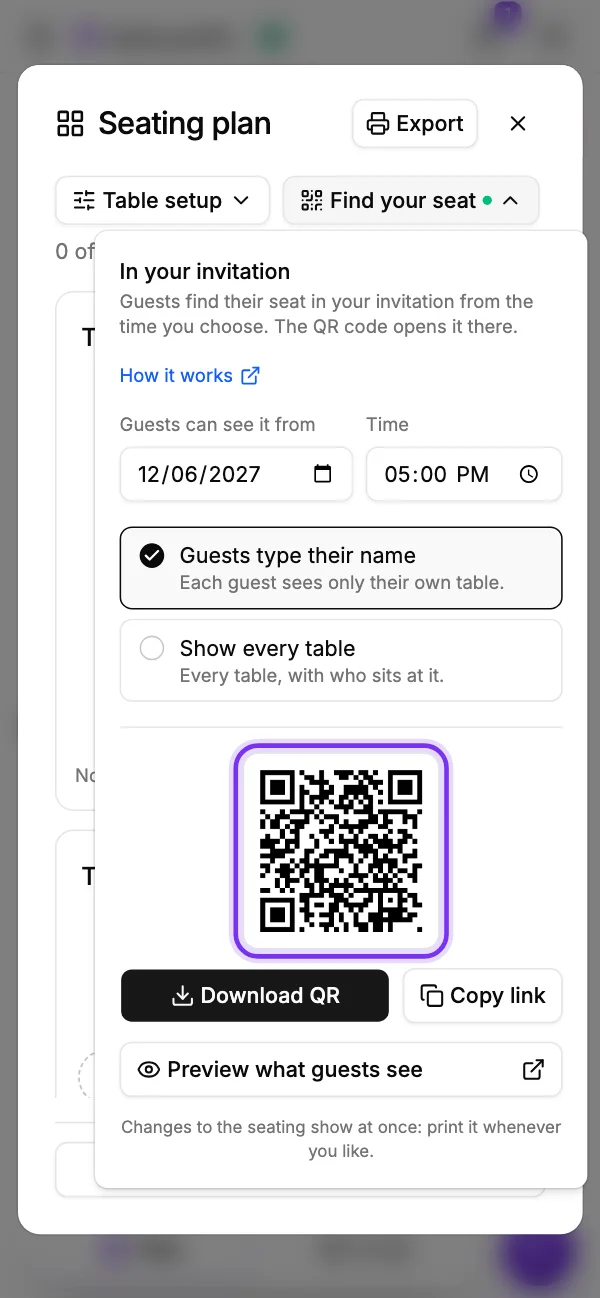
It is one Find your seat. The code opens your invitation on its Find your seat page, from the time you set and in the way you chose, and you can set both from the seating plan or from the form, whichever you are in. Before it opens, the code says it is not open yet. So you can print it weeks ahead, and it works on the day. Preview what guests see opens it in a tab of its own, to check before you print.
No Find your seat page in your invitation? The code can stand on its own: switch on Guests find their table, choose how guests find it, and it opens a plain page with your names over it, for as long as it is switched on.
Before the day
Do
- Seat every party that said yes, and check the names match their replies
- Set the time for when guests arrive at the reception
- Try it yourself with a guest's name before you share it
- Keep one printed chart by the door for anyone without a phone
Don't
- Open it weeks before the wedding
- Leave plus ones unnamed if you know their names
- Show every table if your list has anyone who should not see it
- Forget to choose when it opens
Add Find your seat to your invitation
Seat your guests, add the page, and choose when it opens.