
Replies and guests
Remove a guest, or stop them replying
Plans change. You can take a guest off in two places: their reply on your guest list, and the link of their own you sent from the Share page.
Remove a reply
- Open Guests.
- Click the guest's row, or the pencil at the end of it.
- At the bottom, choose Remove this guest, then Remove.
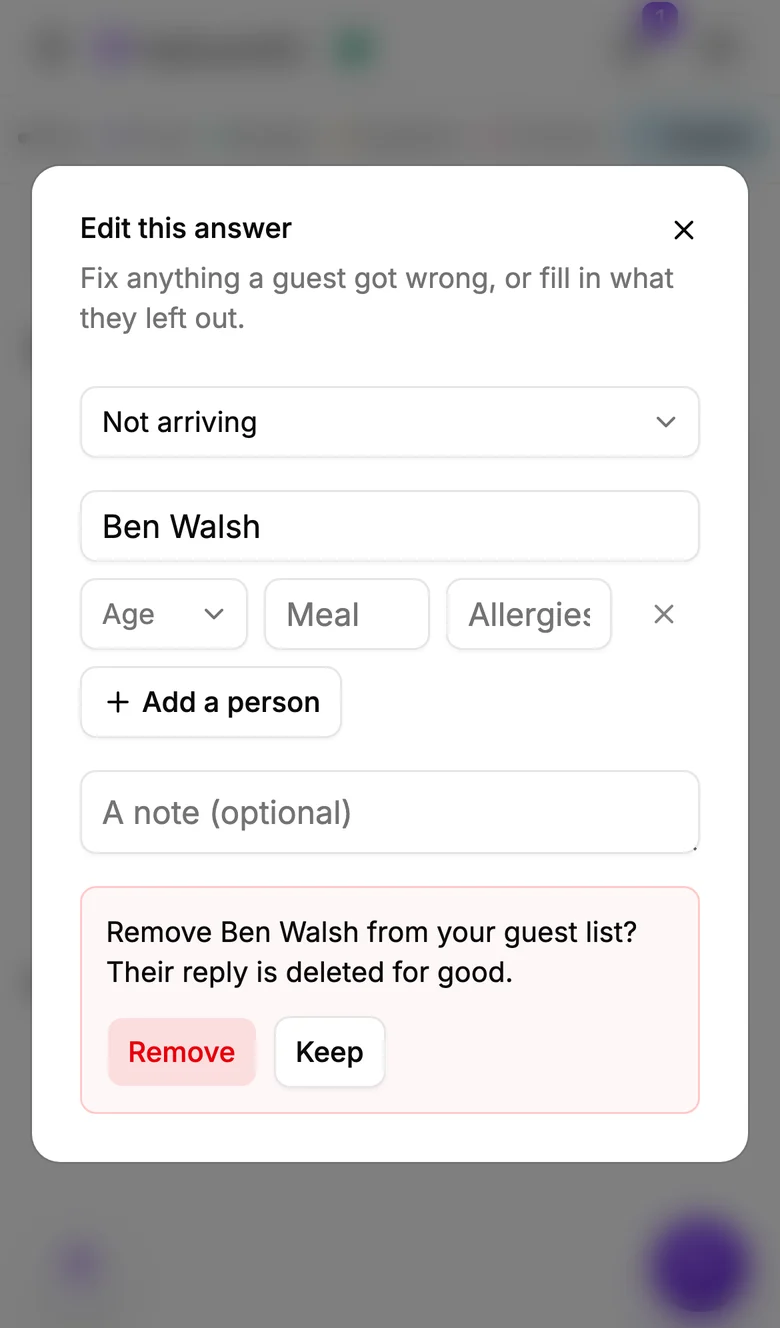
Their reply is deleted for good, and they no longer count in your numbers, your catering list or your seating plan. Removing replies comes with All-in.
Stop a guest from replying
If you sent a guest their own link from your guest list, by email or WhatsApp, you can close it.
- Open Share, then Guest list.
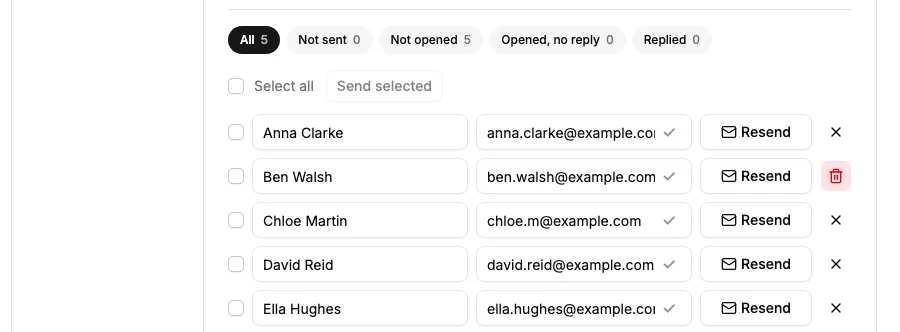
- Click the X at the end of the guest's row. It turns into a red bin.
- Click the bin. The guest leaves your list and their link is closed.
From then, their link no longer opens your invitation, so they cannot reply through it. It shows a short page instead.
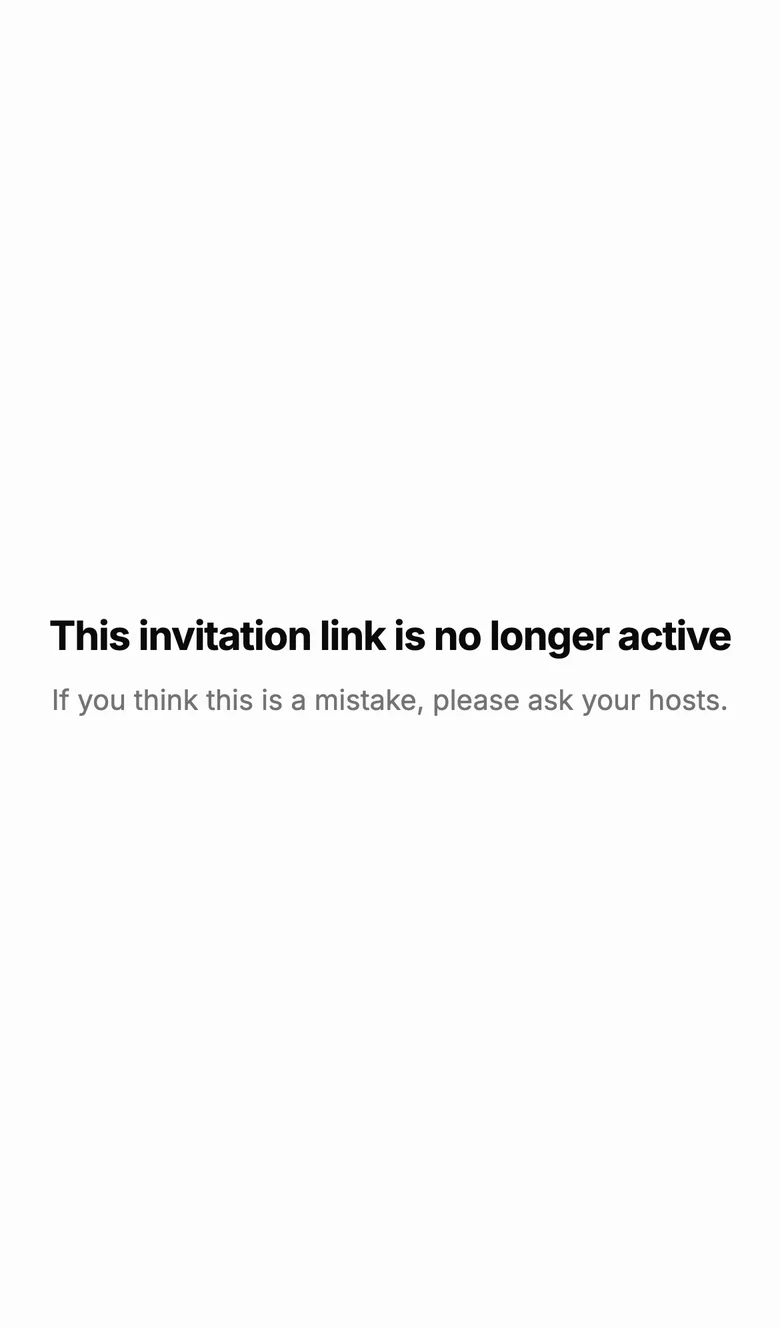
This closes the guest's own link, for them and for anyone they forward it to. It doesn't close other links: if you also shared one link for everyone, in a group or a post, that link still opens for anyone who has it, and so does another guest's own link if it's forwarded. Should a removed guest reply that way, remove their reply as above.
Did this not answer it? Write to us
A person reads every message and answers by email. Say which event it is about and, if something went wrong, what you were doing at the time.