
For venues and planners
Inviting the couple and your team to an event
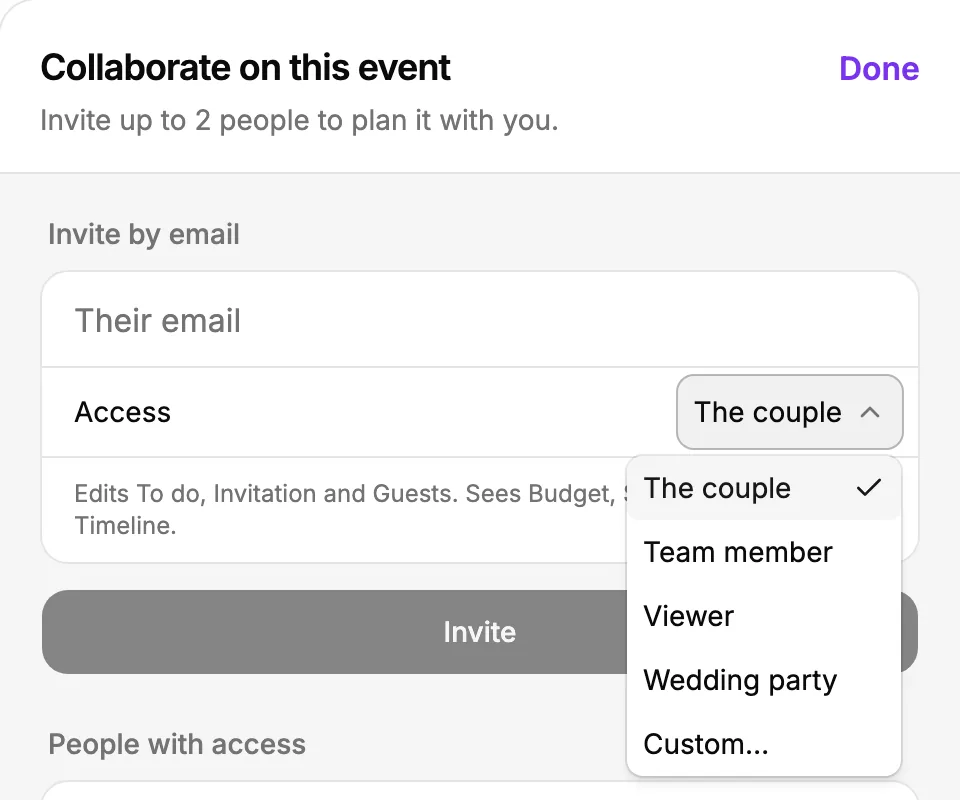
Each event can be shared with up to two people, such as the couple, or one of them and a colleague. They need an account of their own with the address you invite, so you always know who changed what.
Invite someone
- Open the event and press Collab, at the top of the planner or on Plan, in Shared with.
- Type their email.
- Choose their access: The couple, Team member, Viewer, one of your own roles, or Custom. The line under it says what they will be able to do.
- Press Invite. They get an email with a link, and accept it with that same address.
Once they accept, the event opens for them in the planner, as far as their role goes. They see that one event only: never your calendar or your other couples.
Custom access for one person
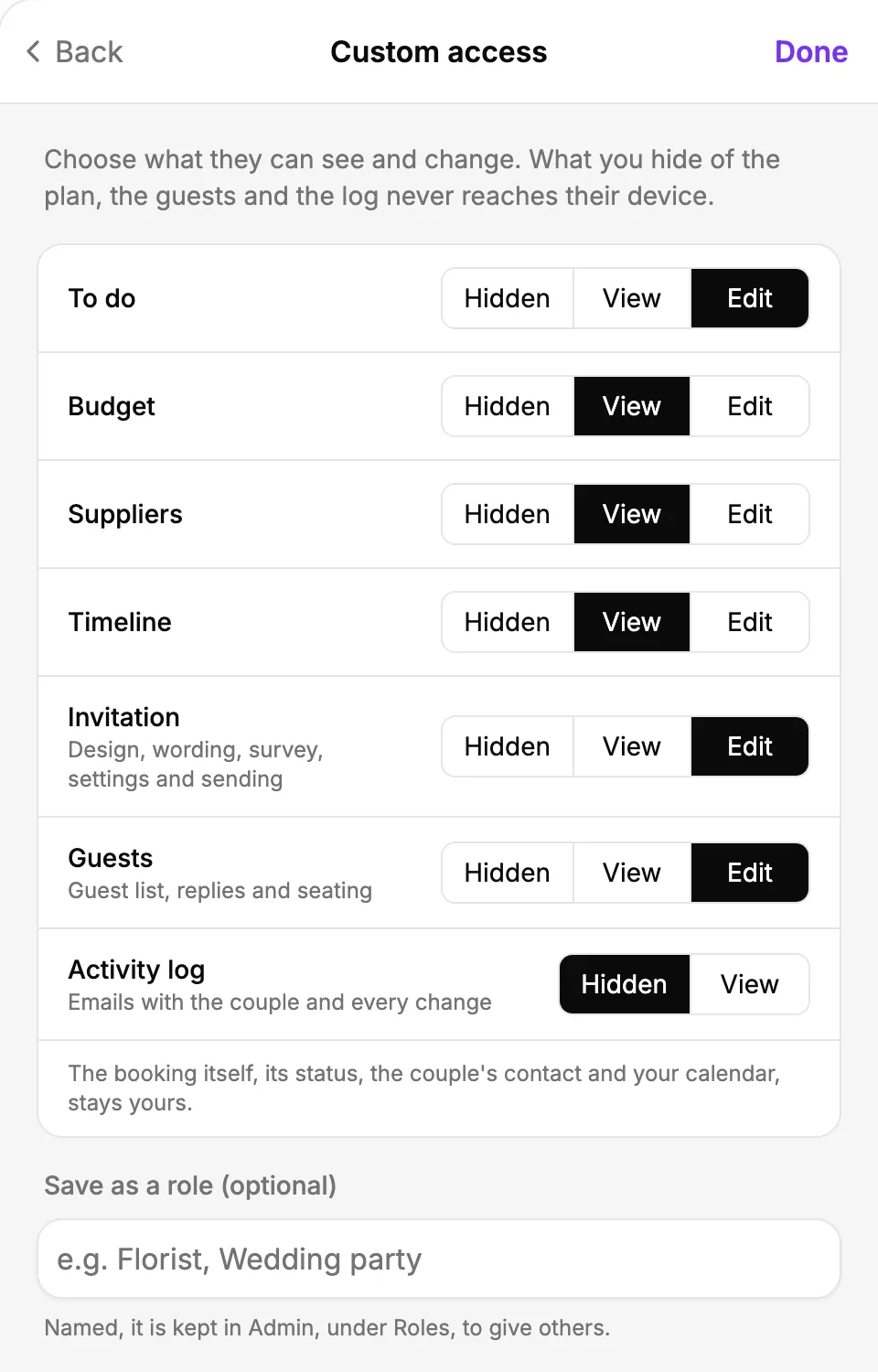
- In Access, choose Custom.
- Set each section to Hidden, View or Edit.
- To keep it for others too, give it a name under Save as a role. It is then in Admin, under Roles.
- Press Done, then Invite.
Change their access, resend or remove
Beside each person in Collab, press ⋯:
- Change access: choose another role, or Custom to set their sections one by one.
- Resend invite: send the email again, until they accept.
- Remove: take the event away from them. What they changed stays.
When they ask for more
On a page they can only view, they can press Ask to edit. You get an email, Shared with on Plan marks it, and in Collab their line says what they ask for, such as Asks to edit Suppliers. Press Give access and that section becomes theirs to edit, or Decline.
Did this not answer it? Write to us
A person reads every message and answers by email. Say which event it is about and, if something went wrong, what you were doing at the time.